

Download Mouse Speed Switcher – Free, Secure Mouse Speed Tool for Windows, Mac, Android & iOS
Mouse Speed Switcher is a lightweight yet powerful utility designed for users who switch between multiple input devices—like an external mouse and a laptop touchpad—frequently. Whether you're a graphic designer, programmer, or casual user, this tool lets you customize and switch between five distinct mouse speed settings with ease. No more adjusting mouse sensitivity manually every time you switch devices.
With customizable keyboard hotkeys and a system tray interface, Mouse Speed Switcher ensures a seamless transition between your preferred settings. The software supports automatic detection of input devices, so it can adjust your mouse speed in real time based on whether you're using a touchpad or an external mouse. It's perfect for professionals who need precision with a mouse and speed with a touchpad.
Available for Windows, Mac, Android, and iOS, this free tool is secure, regularly updated, and ideal for anyone seeking a smarter way to manage mouse sensitivity.
Key Features of Mouse Speed Switcher
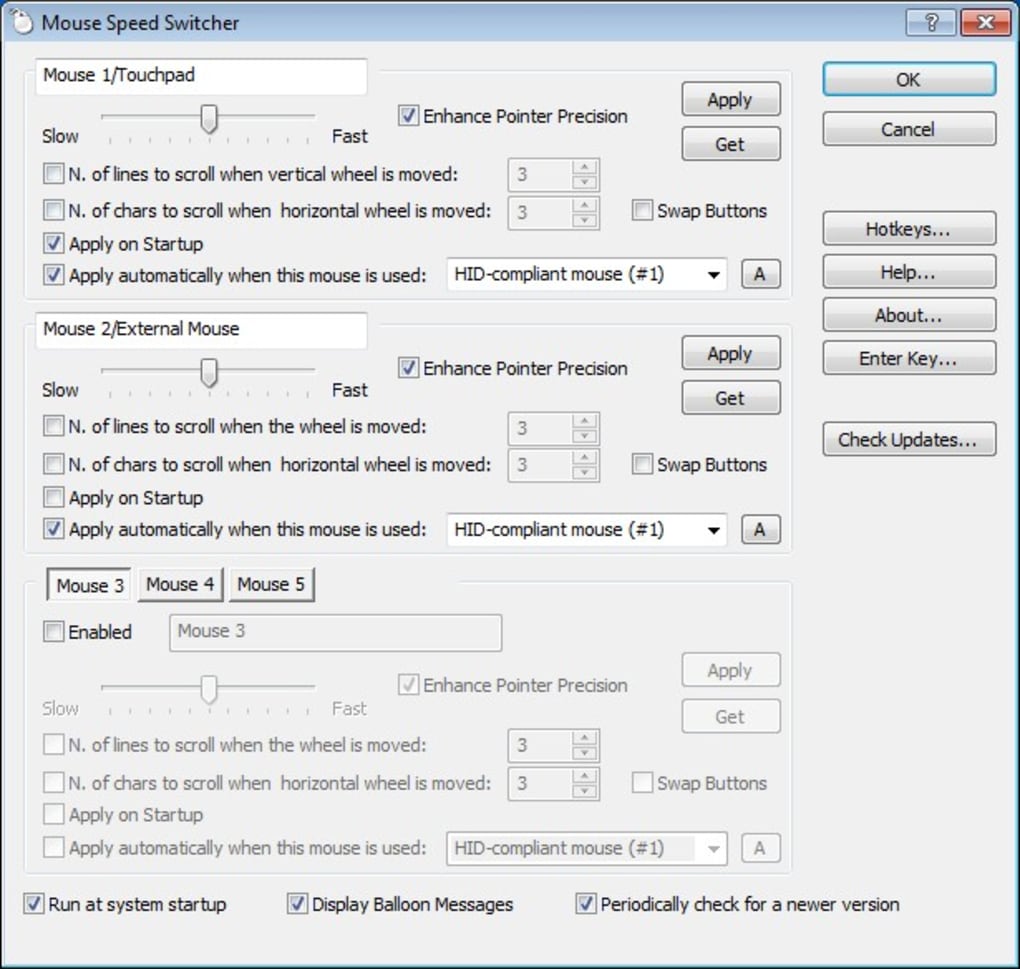
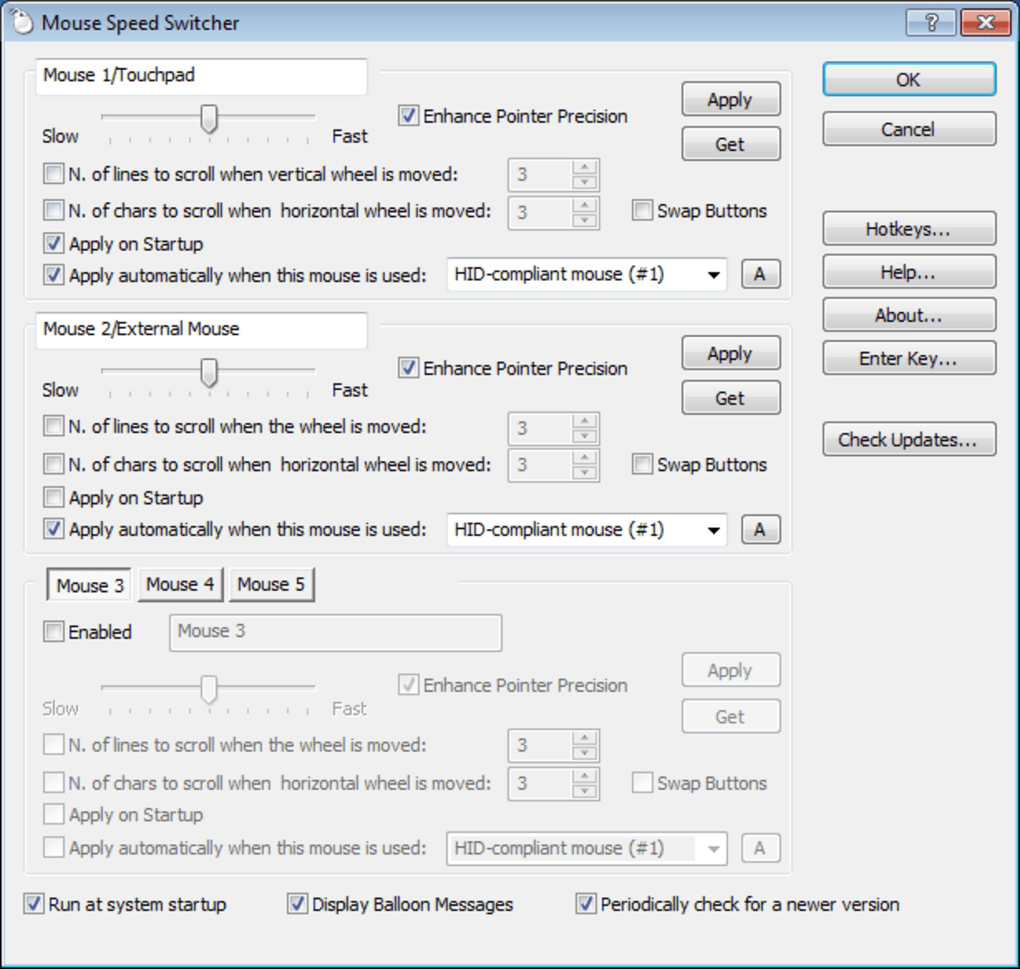
Mouse Speed Switcher stands out in the crowded field of mouse management tools thanks to its intuitive design and powerful functionality. One of its standout features is the ability to save and switch between up to five custom mouse speed profiles. This is especially useful for users who rely on different sensitivity levels depending on the task—such as high precision for photo editing and faster movement for browsing. Each profile can be assigned a unique name, making it easy to identify settings like "Editing," "Gaming," or "Touchpad Mode."
Another major advantage is the support for keyboard shortcuts. You can assign hotkeys (like Ctrl+Shift+1 or Ctrl+Alt+2) to instantly switch between profiles without navigating menus. This is a game-changer for multitaskers who need speed and efficiency. The system tray icon provides quick access to a settings panel, where you can tweak sensitivity, enable/disable profiles, and adjust auto-switching behavior.
Automatic detection is another smart feature. When enabled, the app monitors your input device in real time. If you unplug your external mouse and start using the laptop touchpad, Mouse Speed Switcher automatically switches to your pre-defined touchpad profile. This eliminates the need for manual adjustments and enhances productivity. The software also supports smooth transitions between profiles, preventing jarring changes in cursor movement.
For users who want even more control, the app includes a customizable delay before switching profiles, ensuring accidental device disconnections don’t trigger unwanted changes. Additionally, all settings are saved locally, so you don’t need to reconfigure them after a reboot. Whether you're using a high-DPI gaming mouse or a standard office mouse, Mouse Speed Switcher adapts to your workflow—making it one of the most versatile mouse speed tools available.
How to Install and Use Mouse Speed Switcher
Getting started with Mouse Speed Switcher is quick and straightforward, regardless of your operating system. For Windows users, head to the official website and download the installer file. Run the setup wizard, accept the license agreement, and choose your preferred installation directory. The process takes less than a minute, and the app automatically launches after installation.
On Mac, the process is equally simple. Download the .dmg file, open it, and drag the Mouse Speed Switcher app into your Applications folder. Once installed, open the app from the Applications folder or Launchpad. The first time you run it, you may need to grant accessibility permissions in System Settings to allow the app to control mouse settings.
For Android and iOS users, the app is available on the Google Play Store and Apple App Store, respectively. Search for "Mouse Speed Switcher," download the free version, and follow the on-screen instructions. On mobile devices, the interface is optimized for touch, allowing you to tap between profiles or use gesture-based switching.
After installation, launch the app and access the system tray (Windows) or menu bar (Mac) icon. Click on it to open the settings panel. Here, you can create up to five profiles, name them, and assign specific sensitivity values. You can also set keyboard shortcuts, enable automatic switching, and adjust the delay before profile changes.
Once configured, you can switch profiles instantly using your assigned hotkeys or by clicking the system tray icon. The app runs in the background and consumes minimal system resources, so it won’t slow down your device. It’s also designed to start automatically with your system, ensuring your preferred mouse settings are always ready.
Compatibility & System Requirements
Mouse Speed Switcher is built to support a wide range of devices and operating systems, making it a truly cross-platform solution. The software is officially available for Windows 7 and later, including Windows 10, 11, and Windows 11 ARM64. It runs smoothly on both 32-bit and 64-bit systems, ensuring compatibility with older and newer hardware.
For Mac users, Mouse Speed Switcher supports macOS 10.15 (Catalina) and later, including the latest versions like macOS Sonoma. It’s optimized for Intel and Apple Silicon (M1/M2) Macs, delivering excellent performance across all Mac devices.
Mobile users can download the app on Android 8.0 (Oreo) and above, as well as iOS 12.0 and later. The mobile version is designed for smartphones and tablets, offering a touch-friendly interface that allows you to switch mouse speed profiles on the go—ideal for users who connect external mice to their tablets or use mobile devices with trackpads.
The software has minimal system requirements. On desktops, it uses less than 10 MB of RAM and requires no additional drivers. On mobile devices, it’s lightweight and doesn’t drain battery life significantly. The app is regularly updated to ensure compatibility with new OS versions and to fix bugs or improve performance. All versions are free to download and use, with no ads or in-app purchases in the basic edition.
Pros and Cons of Mouse Speed Switcher
- Pros:
- Supports up to five customizable mouse speed profiles
- Quick switching via keyboard hotkeys or system tray icon
- Automatic detection of input devices (mouse vs. touchpad)
- Lightweight and low resource usage
- Available for Windows, Mac, Android, and iOS
- Free to download and use with no ads
- Regular updates and secure installation
- Easy setup and intuitive interface
- Cons:
- No advanced customization like DPI adjustment (limited to speed only)
- Mobile version lacks some desktop-level features
- Accessibility permissions required on Mac (can be confusing for beginners)
- No built-in backup or sync across devices (settings stay local)
- Basic free version lacks cloud integration or premium features
Frequently Asked Questions (FAQ)
How do I install Mouse Speed Switcher on Windows?
Download the installer from the official website, run it, and follow the on-screen instructions. The app will install automatically and launch after setup. No admin rights are required for basic functionality.
Can I use Mouse Speed Switcher on Mac?
Yes, Mouse Speed Switcher is fully compatible with macOS 10.15 and later. After installation, you may need to enable accessibility permissions in System Settings for the app to function properly.
Is Mouse Speed Switcher free to use?
Yes, the core version is completely free to download and use. There are no ads, no in-app purchases, and no trial periods. The free version includes all essential features.
Does Mouse Speed Switcher work with gaming mice?
Yes, it works with any standard mouse, including high-DPI gaming mice. The app adjusts cursor speed based on your settings, not the mouse’s native DPI. For advanced DPI control, you may need additional software from the mouse manufacturer.
Can I sync my profiles across devices?
Currently, Mouse Speed Switcher stores settings locally on each device. There is no built-in cloud sync. However, you can manually export and import settings if needed.
How do I switch profiles using keyboard shortcuts?
Go to the app’s settings, navigate to the "Hotkeys" section, and assign a key combination (e.g., Ctrl+Shift+1) to each profile. Press the shortcut to switch instantly.
Final Verdict: Is Mouse Speed Switcher Worth It?
Mouse Speed Switcher is a must-have tool for anyone who frequently switches between a mouse and a touchpad. Its ability to manage multiple mouse speed profiles with ease—through hotkeys, system tray access, or automatic detection—makes it a standout in the productivity software space. Whether you're a creative professional, a developer, or a student, this free and secure tool enhances your workflow without adding complexity.
While it doesn’t offer advanced features like DPI control or cloud sync, its core functionality is rock-solid and reliable. The software is lightweight, regularly updated, and available across all major platforms. If you’re tired of manually adjusting mouse sensitivity every time you switch devices, Mouse Speed Switcher is the perfect solution.
Download Mouse Speed Switcher today and take full control of your cursor speed—effortlessly, securely, and for free.







